Updating Infrastructure Services
8. Updating Infrastructure Services
With the infrastructure in production, in this chapter we describe the update process for each service. We always recommend reviewing the release notes before updating and making a backup beforehand.
8.1 Lightning Network Daemon (LND)
To perform any update on the LND service, you should know that if you don't have the seed phrase and the latest backup of the channel state, you run the risk that if the update fails due to some error, you will have no way to restore the node.
Where do we find the seed phrase? The seed phrase was obtained in the First Steps tutorial, and the seed can only be obtained once, so there is no way to obtain it again.
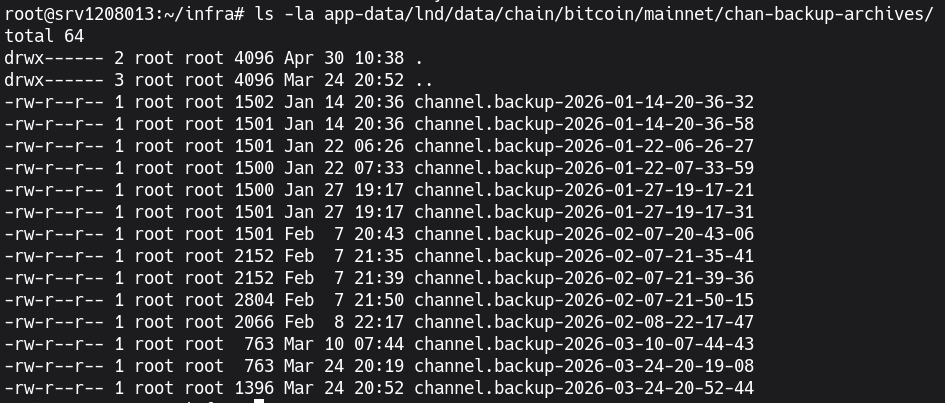
Where do we find the channel backup? It is saved by default inside the node's data directory. In our infrastructure it is located in app-data/lnd/data/chain/bitcoin/mainnet/chan-backup-archives/
List the chan-backup-archives/ directory:
ls app-data/lnd/data/chain/bitcoin/mainnet/chan-backup-archives/Image 1: LND channel backup directory.
It is important to add that you should review the release notes of the new node version before updating, as sometimes changes must be made to the node configurations to avoid failures. Now, let's see how to update.
Our node has version v0.19.3-beta and we will update it to the latest version v0.20.1-beta. After reviewing the release notes, there is nothing to highlight, so we only need to modify the docker-compose.yml file.
To update the version, edit the docker-compose.yml file and scroll to the lnd service:
nano docker-compose.ymlThe lnd service would be composed of the following:
lnd:
  image: lightninglabs/lnd:v0.19.3-beta
  container_name: lightning-node-1
  restart: unless-stopped
  ports:
    - "9735:9735"
    - "10009:10009"
    - "8080:8080"
  volumes:
    - ./app-data/lnd:/root/.lnd
    - tor-data:/var/lib/tor:ro
  command:
    - --configfile=/root/.lnd/lnd.conf
  depends_on:
    - tor
On the image: line is where the image version that our container will use is declared. Since we want to upgrade the version where it says v0.19.3, we put v0.20.1, resulting in the following:
lnd:
  image: lightninglabs/lnd:v0.20.1-beta
  container_name: lightning-node-1
  restart: unless-stopped
  ports:
    - "9735:9735"
    - "10009:10009"
    - "8080:8080"
  volumes:
    - ./app-data/lnd:/root/.lnd
    - tor-data:/var/lib/tor:ro
  command:
    - --configfile=/root/.lnd/lnd.conf
  depends_on:
    - tor
Save and exit the file ctrl+s and ctrl+x
Recreate the container with the following command:
docker-compose up --force-recreate lnd -dThis command will download the new version of the image, delete the container with the previous version, and create it from the newly downloaded image.
8.2 Updating LNbits
Recommended order before updating:
docker-compose stop cashudocker-compose stop lnbits- Wait ~1 minute for in-flight payments to settle.
- Make the backup (see section 8.2.1).
- Update and recreate the container. Do not interrupt the database migration.
- If the migration fails, restore the backup and recreate with the previous version.
Before making changes to the LNbits version, it is recommended to make a database backup. This can be done from the LNbits superuser account. If you don't know which one it is, you can go back to the LNbits tutorial to find out.
After logging into LNbits, go to Settings and click the DOWNLOAD DATABASE BACKUP button that appears next to the RESTART SERVER button.
Image 2: Database Backup.
The downloaded zip file contains a dump of the database, plus a copy of the LNbits data directory that includes extensions and application logs.
8.2.1 Backing up the database from the CLI
We can perform a database backup easily; just execute the command:
docker exec -t postgres_lnbits pg_dump -U lnbits_user lnbits_db | gzip > lnbits_backup_$(date +%Y%m%d_%H%M%S).sql.gzThis will create the file in the directory from where the command was executed.
Now that we have the backup, go to the docker-compose.yml file again and look for the lnbits service.
nano docker-compose.ymllnbits:
image: lnbits/lnbits:v1.4.0
container_name: app_lnbits
restart: unless-stopped
volumes:
- ./app-data/lnd/:/app/.lnd/:ro
- ./app-data/lnbits/data/:/app/data
- ./app-data/lnbits/.env:/app/.envWe see that the image version we are using is v1.4.0 and there is a new version v1.5.3 in the project's GitHub repository. It is always recommended to view the release notes of the new version to know if there are any extra steps to perform before updating.
Change the version v1.4.0 to v1.5.3 on the image: line:
lnbits:
  image: lnbits/lnbits:v1.5.3
  container_name: app_lnbits
  restart: unless-stopped
  volumes:
    - ./app-data/lnd/:/app/.lnd/:ro
    - ./app-data/lnbits/data/:/app/data
    - ./app-data/lnbits/.env:/app/.env
Save and exit the file ctrl+s and ctrl+x
Recreate the container with the following command:
docker-compose up --force-recreate lnbits -dThis command will download the new version of the image, delete the container with the previous version, and create it from the newly downloaded image.
8.3 Updating the Cashu Mint
cashu service. LND and LNbits must keep running. If there is a melt in flight (the user already burned the tokens but the Lightning payment has not yet confirmed) and the migration fails, restoring a previous backup could allow a double spend.Recommended order before updating:
docker-compose stop cashu- Wait ~1 minute for in-flight payments to settle.
- Make the backup (see below).
- Update and recreate the container. Do not interrupt the database migration.
- If the migration fails, restore the backup and recreate with the previous version.
Before updating the Cashu mint version, we must make a backup of the Cashu database. Since it is an SQLite database, the process is simpler; we just need to make a copy of the mint.sqlite3 file.
Move to the Cashu directory located in app-data/cashu/
cd app-data/cashuCreate a backup directory if it doesn't exist.
mkdir -p backupCopy the mint database.
cp data/mint/mint.sqlite3 backup/After saving the database, go to the docker-compose.yml file:
nano docker-compose.ymlcashu:
image: cashubtc/nutshell:0.19.2
container_name: app_cashu
restart: unless-stopped
volumes:
- ./app-data/cashu/.env:/app/.env
- ./app-data/cashu/data:/app/data
- ./app-data/cashu/certs:/app/certs
- ./app-data/cashu/certs/server_private.pem:/app/server_private.pem
- ./app-data/cashu/certs/server_cert.pem:/app/server_cert.pem
- ./app-data/cashu/certs/ca_cert.pem:/app/ca_cert.pem
- ./app-data/cashu/certs/client_cert.pem:/app/client_cert.pem
- ./app-data/cashu/certs/client_private.pem:/app/client_private.pem
- ./app-data/cashu/backup:/app/backup
command: ["poetry", "run", "mint"]
depends_on:
- lnbitsWe are going to migrate from version 0.19.2 to 0.20.0. As we did with previous services, we change the version on the image: line, resulting in:
cashu:
  image: cashubtc/nutshell:0.20.0
  container_name: app_cashu
  restart: unless-stopped
  volumes:
    - ./app-data/cashu/.env:/app/.env
    - ./app-data/cashu/data:/app/data
    - ./app-data/cashu/certs:/app/certs
    - ./app-data/cashu/certs/server_private.pem:/app/server_private.pem
    - ./app-data/cashu/certs/server_cert.pem:/app/server_cert.pem
    - ./app-data/cashu/certs/ca_cert.pem:/app/ca_cert.pem
    - ./app-data/cashu/certs/client_cert.pem:/app/client_cert.pem
    - ./app-data/cashu/certs/client_private.pem:/app/client_private.pem
    - ./app-data/cashu/backup:/app/backup
  command: ["poetry", "run", "mint"]
  depends_on:
    - lnbits
Save and exit the file ctrl+s and ctrl+x
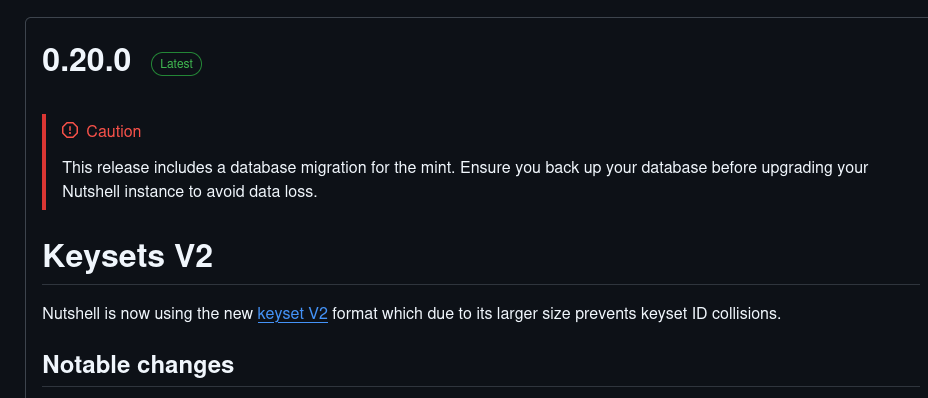
Don't forget to make a database backup. Check the version notes; the following image shows a warning message informing that there are changes in the database structure after the update, and a backup is necessary to avoid data corruption after a failed update.
Image 3: Warning message about changes in database structure.
We just need to execute the command:
docker-compose up --force-recreate cashu -dWhich we already know does: download the new image, delete the old container, and recreate it with the new image.
8.4 Rest of the Infrastructure Services
You might ask why we didn't cover the rest of the services. The reason is that all of them (Tor, Lightning Terminal, Nginx Proxy Manager, Redis, Postgres, and Orchard) are infrastructure support: they add functionalities or allow managing other services. The procedure is always the same: edit docker-compose.yml and change the version.
8.5 Troubleshooting
Items will be added as the community reports them.